Formatting
Discusses the importance of cell formatting for readability and data interpretation. Key topics include number formatting, cell styles, and custom formats.
Custom Number Formats
Use Cases
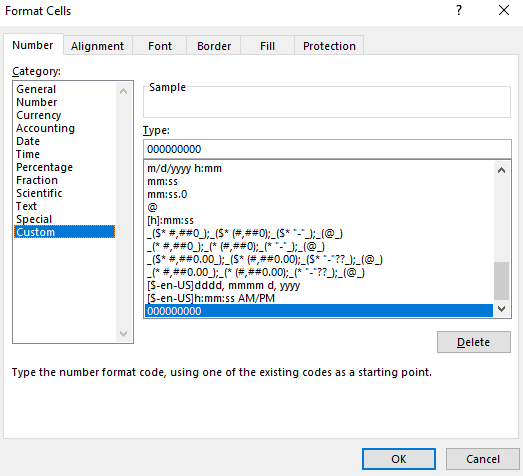
- Specific number formatting (Date, Time, Decimals, Accounting, Percentage, etc..)
- Data from csv file need to be formatted for analysis in 3rd party application (Leading Zeros).
International Currency Formats
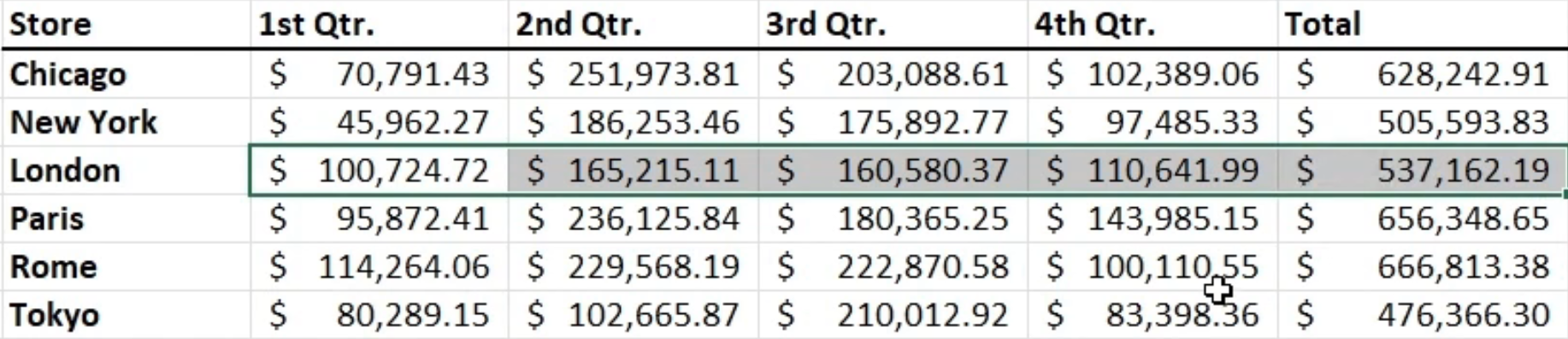
Symbols for Different Currency
Accounting Formats (Does not do conversion)
Working with Data
Covers the basics of data entry, manipulation, and sorting. Emphasizes on efficient data management techniques.
Outline Data
Group Data to Create Outlines
Data > Outline > Group/Ungroup

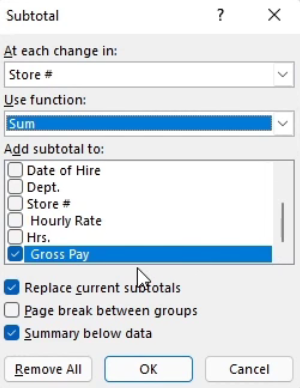
Insert Subtotals
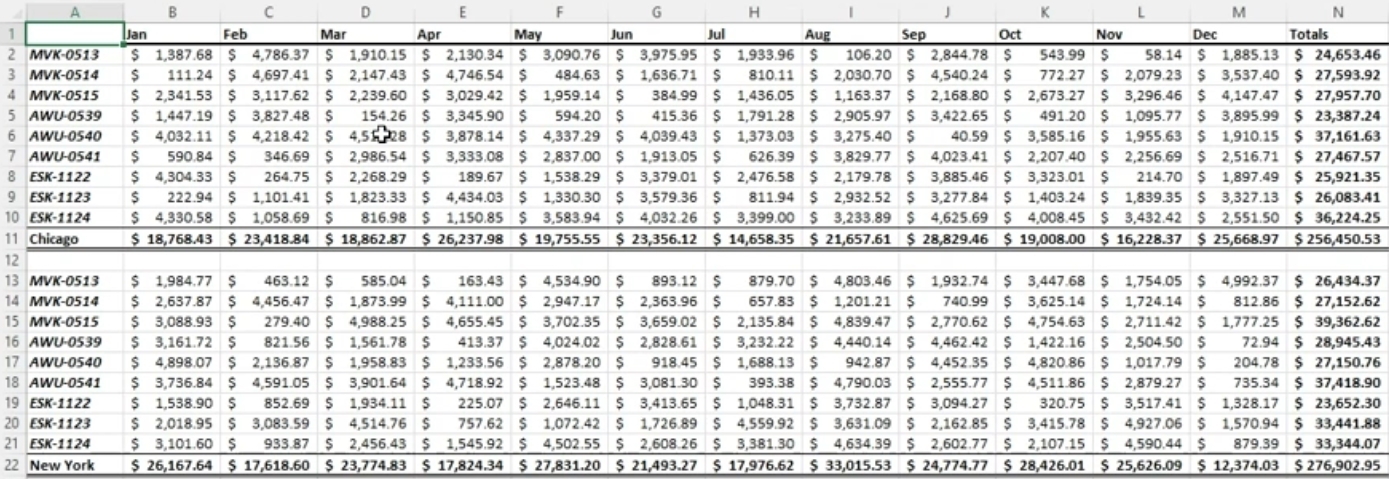
Get Subtotal Amount for a Specific Group
Data > Outline > Subtotal
First sort list by criteria to subtotal by.
Insert References
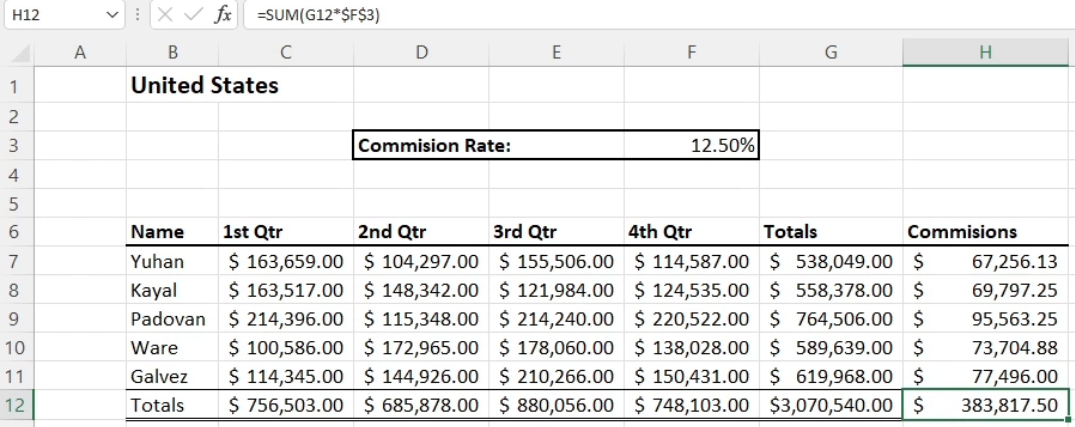
References Rows and Columns
- Relative reference example: =sum(C6:F6)
- Absolute reference example: =sum(G7*$F$3)
Reference Data by Using Structured References
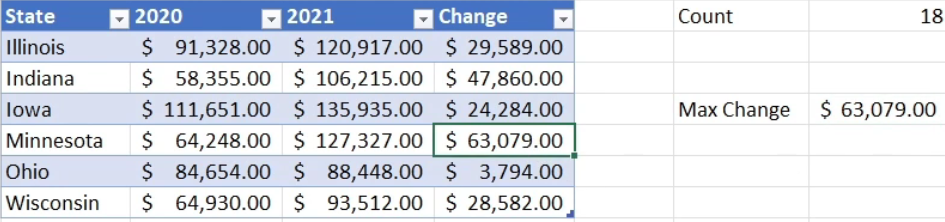
Reference Data by Use of Table Names
- Count of fields in table Sales: =COUNT(Sales)
- Max Change of values in table Sales: =MAX(Sales[Change])
Consolidate Data
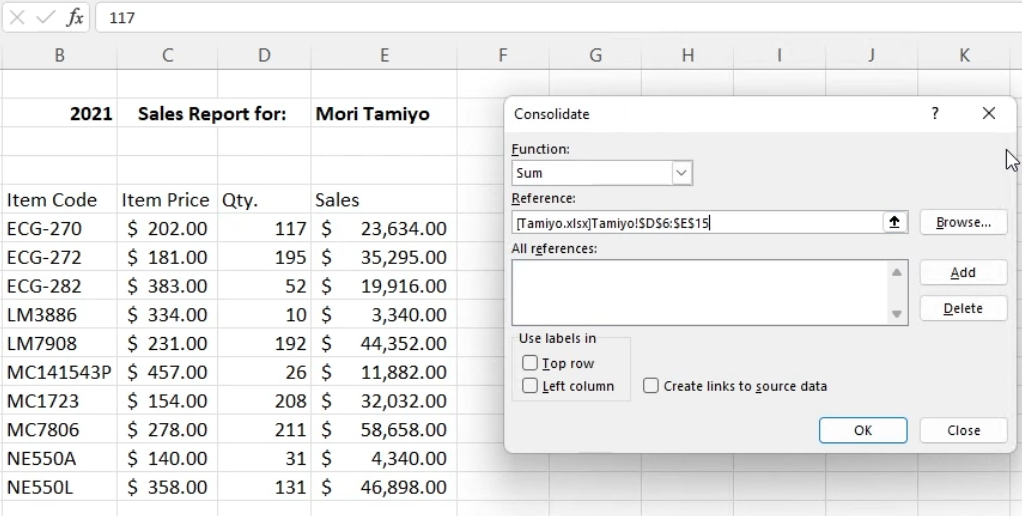
Consolidating Data From Multiple Workbooks
Data > Data Tools > Consolidate
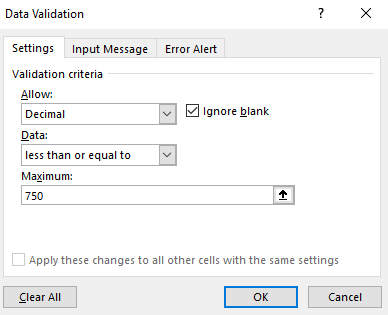
Configure Data Validation
Limit User Inputs
Data > Data Tools > Data Validation
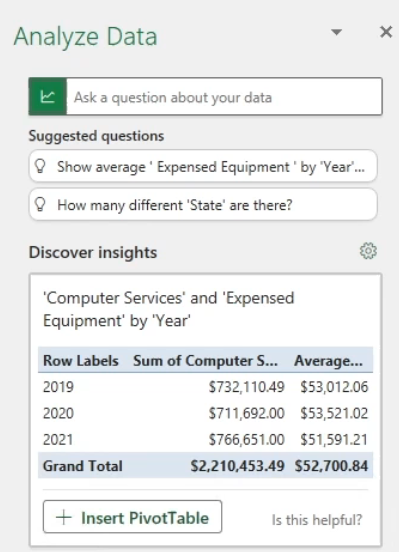
Analyze Data
Extract Information from Data
Home > Analysis > Analyze Data
- Create PivotTables, PivotCharts, Suggestions, etc..
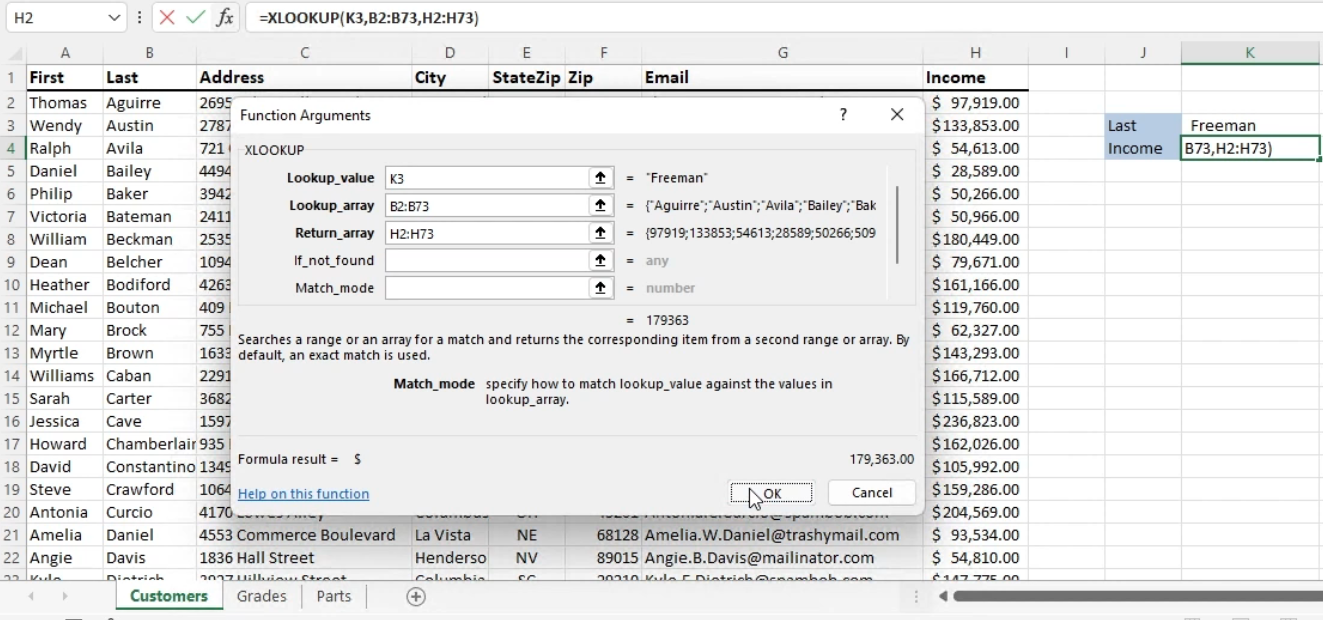
Look Up Data by Using the XLOOKUP Function
Successor to VLOOKUP, HLOOKUP, LOOKUP
Formulas > Function Library > Lookup & Reference > XLOOKUP
- Find return value in same row
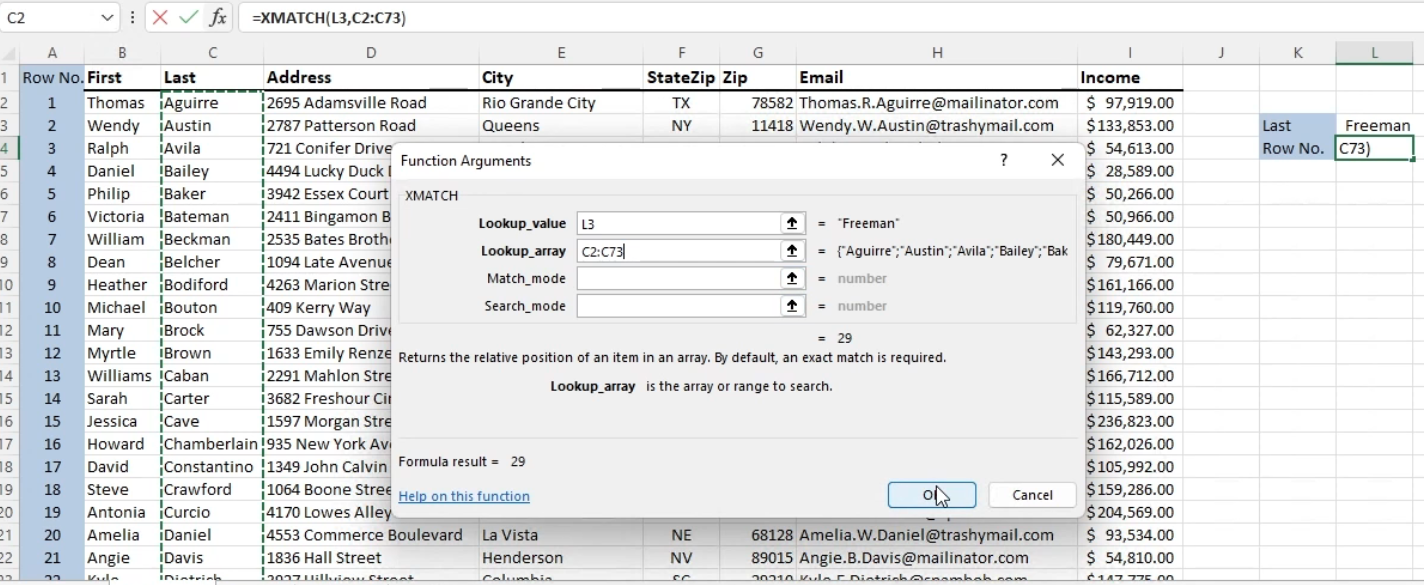
Look Up Data by Using the XMATCH Function
New Version of MATCH function
Formulas > Function Library > Lookup & Reference > XMATCH
- Perform a lookup and return a horizontal or vertical position
Power Query
Explains how to use Power Query for advanced data import and transformation. Highlights include merging and cleaning data sets.
Import, Transform, and Connect to Data
Connect Data from Workbooks Using Power Query
Start with brand new workbook to import data to.
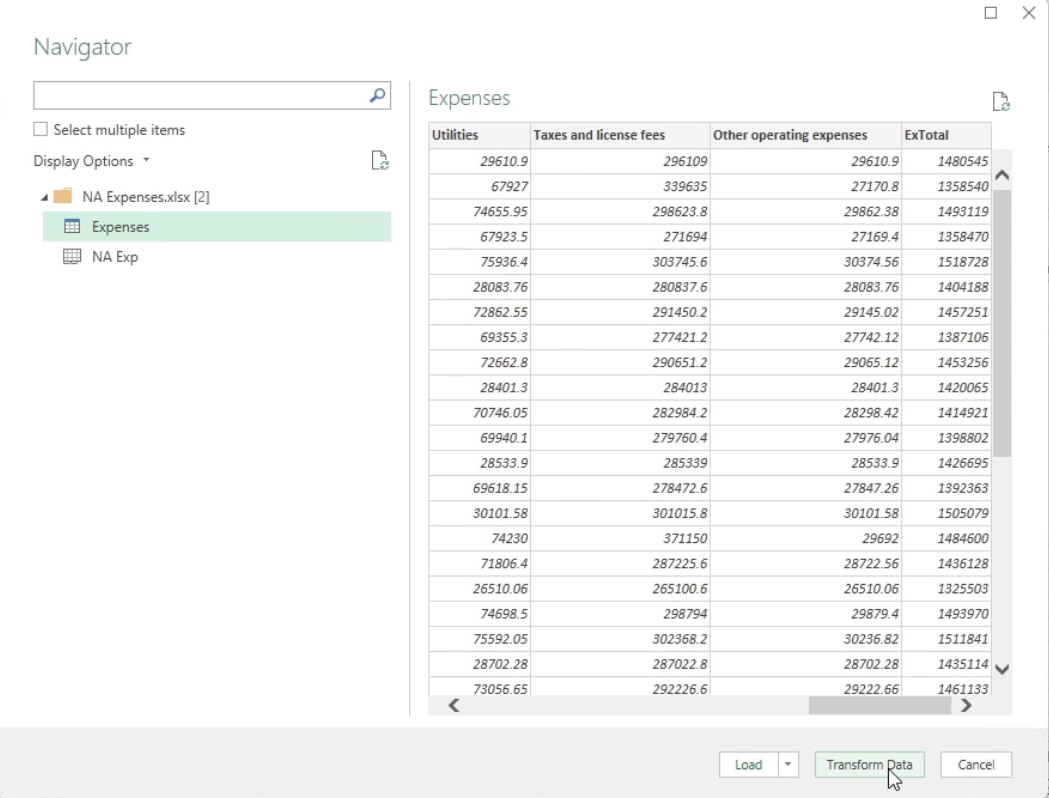
- Data > Get Data > From File
- Select Excel data file in Navigator and click Transform Data to open Power Query editor.
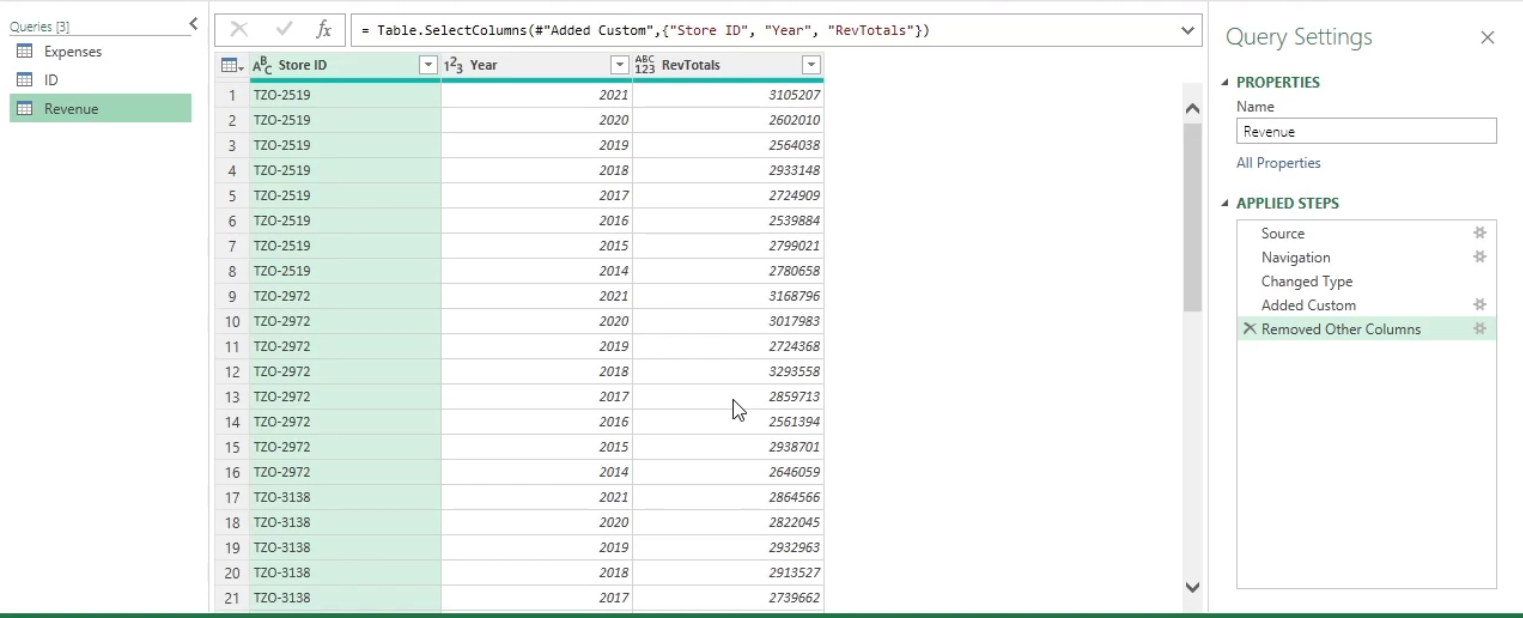
- Choose relevant columns
- Create connection by choosing Close & Load to
- Get Data from another workbook: Data > Get Data > From File
Combine and Display Data
Use Power Query to Combine and Display Data
Data > Get Data > Launch Power Query Editor
- Merge queries together and gather data into a single usable workbook.
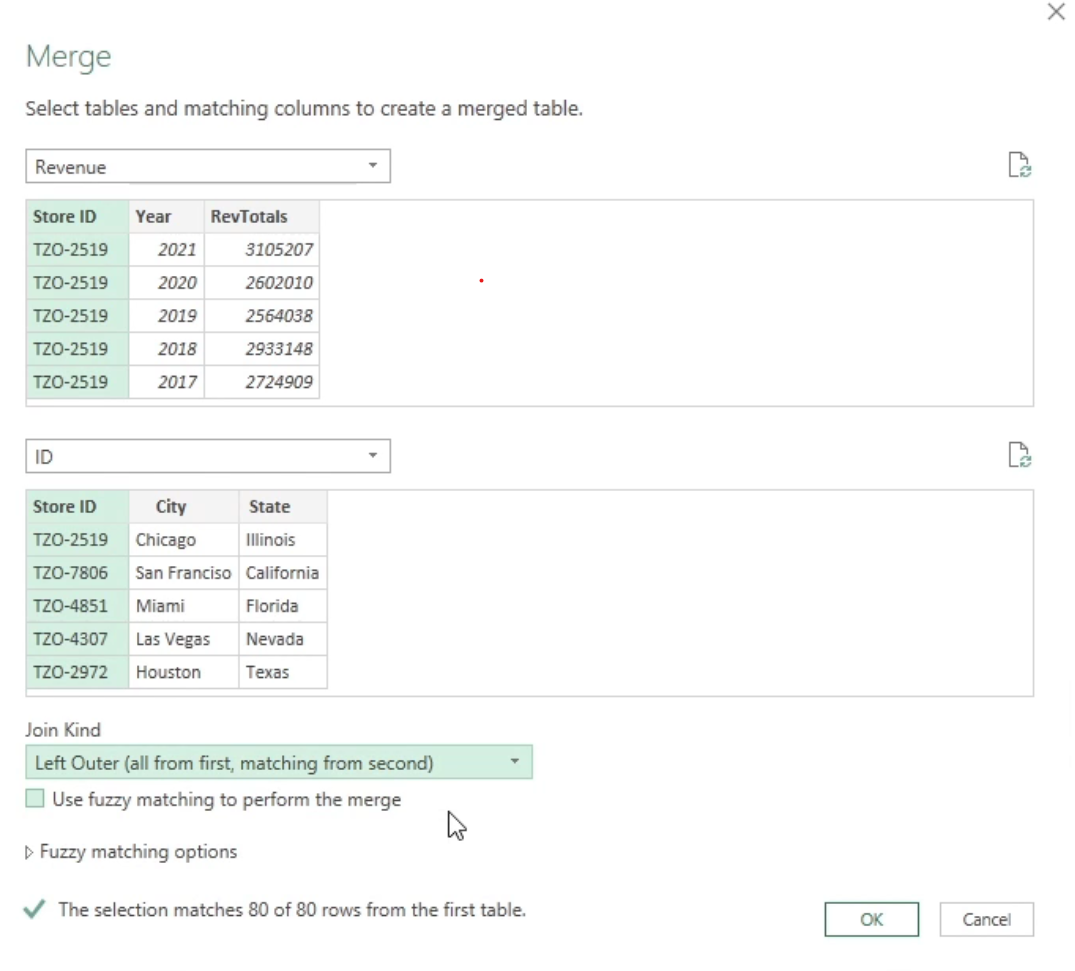
- Home > Combine > Merge Queries
- Data > Combine Queries > Merge